

- Open the navigation sidebar and click on your workspace.
- Under the Workspace section in the left menu, select Members & permissions.
Workspace Seats & Quota
Workspaces operate on a seat-based model depending on your active subscription plan (Starter, Pro, or Max):- Occupied Seats: The sum of all active workspace members plus all outstanding pending invitations.
- Seat Limit: The maximum number of members and active invites your workspace subscription currently covers.
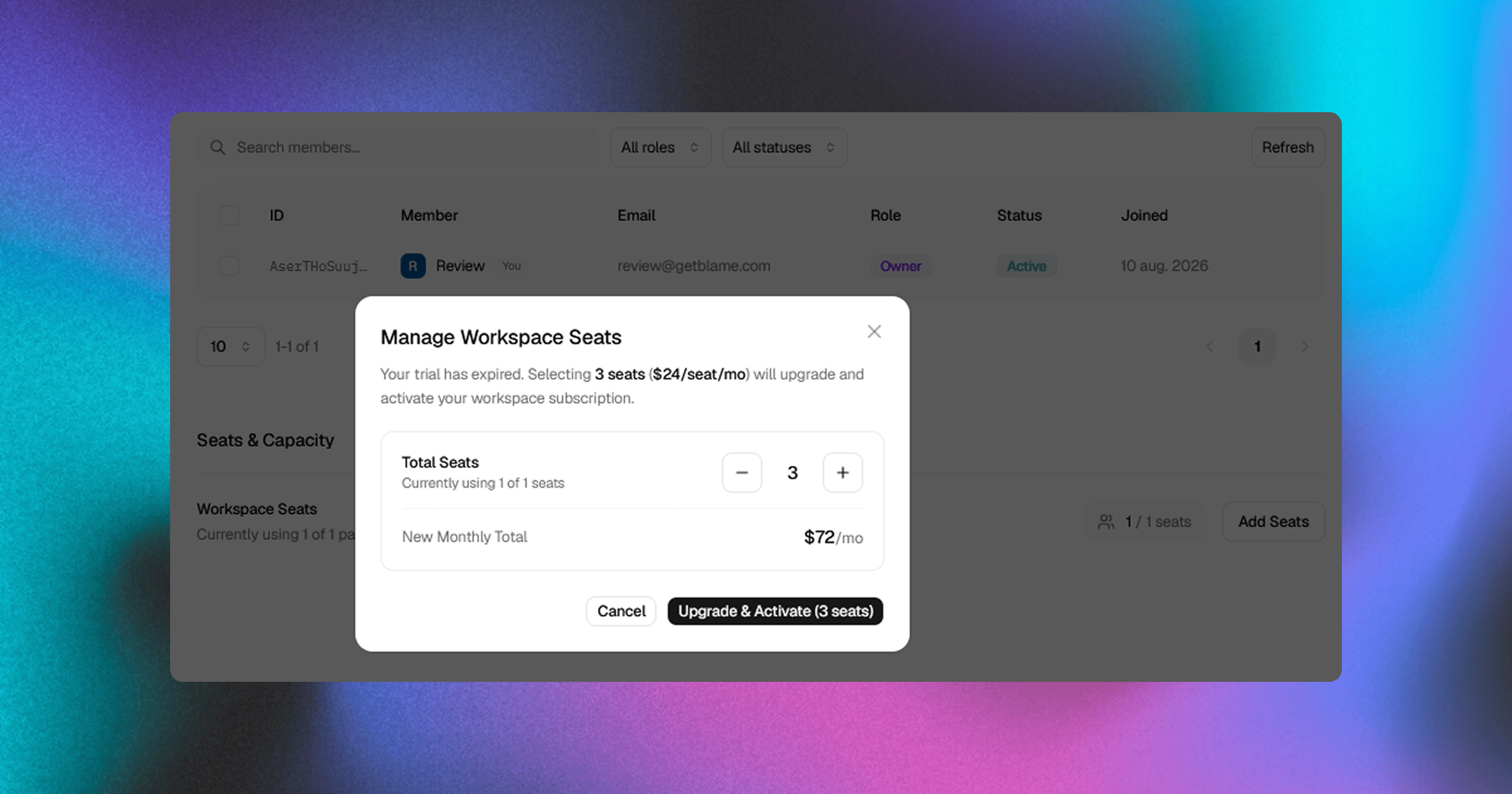
Adding or Removing Seats
Workspace Admins and Owners can adjust seat capacity directly from the Members tab:- Click Add Seats next to seat counts in the Seats & Capacity section.
- Increment or decrement the seat count (up to 100 seats).
- Confirm the update. Billing will be automatically prorated on your subscription.
Inviting New Members
Depending on your workspace invite settings, Owners, Admins, and (optionally) Members can invite new team members.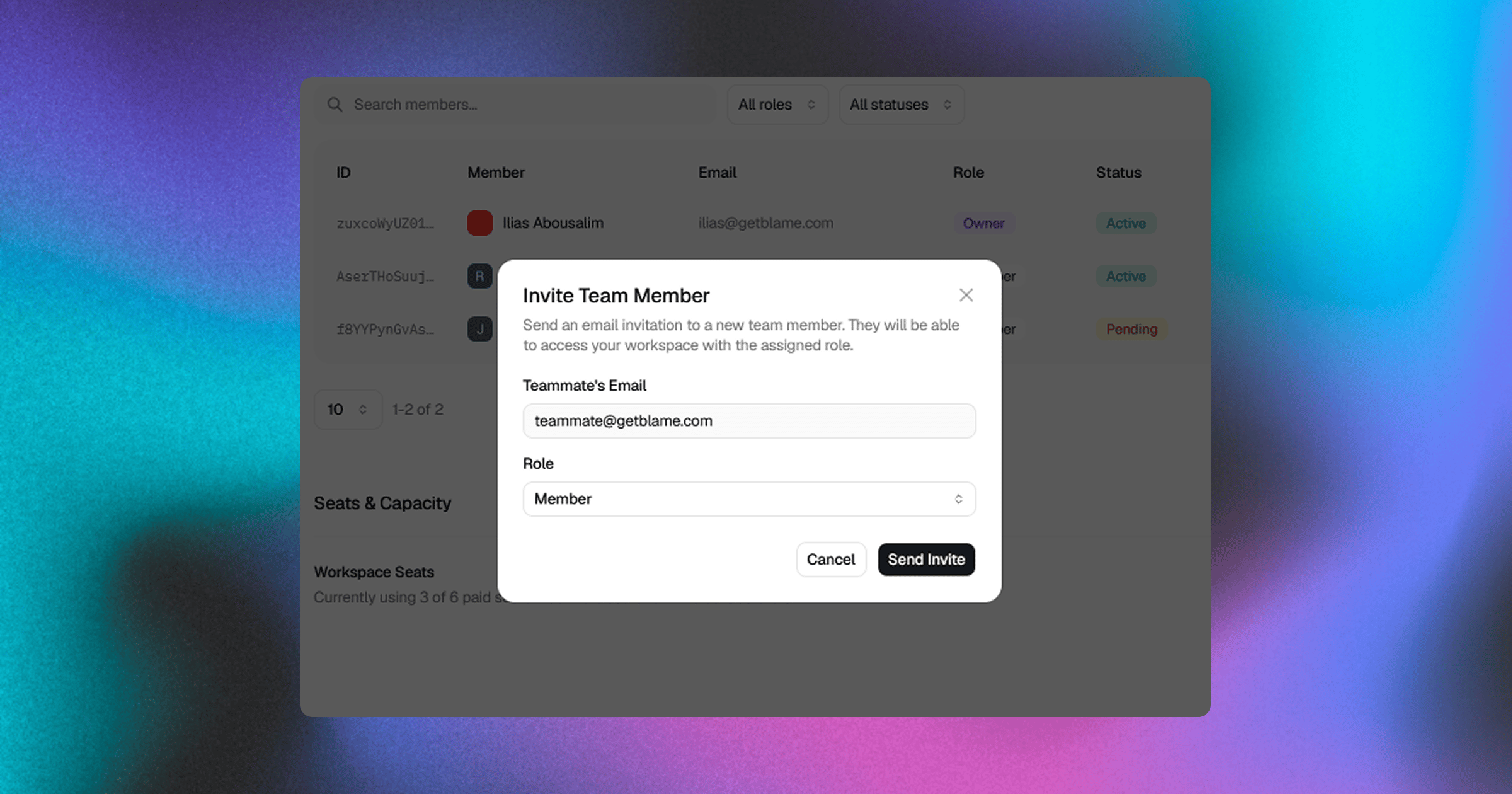
Sending an Invite
- Click the Invite button at the top right of the Members page.
- Enter the teammate’s email address.
- Select an initial role:
- Member: Standard user access (chats, PR reviews, and repos).
- Admin: Elevated administrative access (connect repos, billing, integrations, API keys).
- Click Send Invite. An email invitation with a secure link will be dispatched to the user. Once accepted, they gain immediate access to all workspace assets.
Member Roles & Permissions Matrix
Blame implements role-based access control (RBAC) to ensure security across your repositories and billing data:Members can invite new users only when the Allow Member Invites setting is enabled in Workspace Settings.
Managing Existing Members & Invites
The Members table displays all active users and pending invitations in one consolidated list.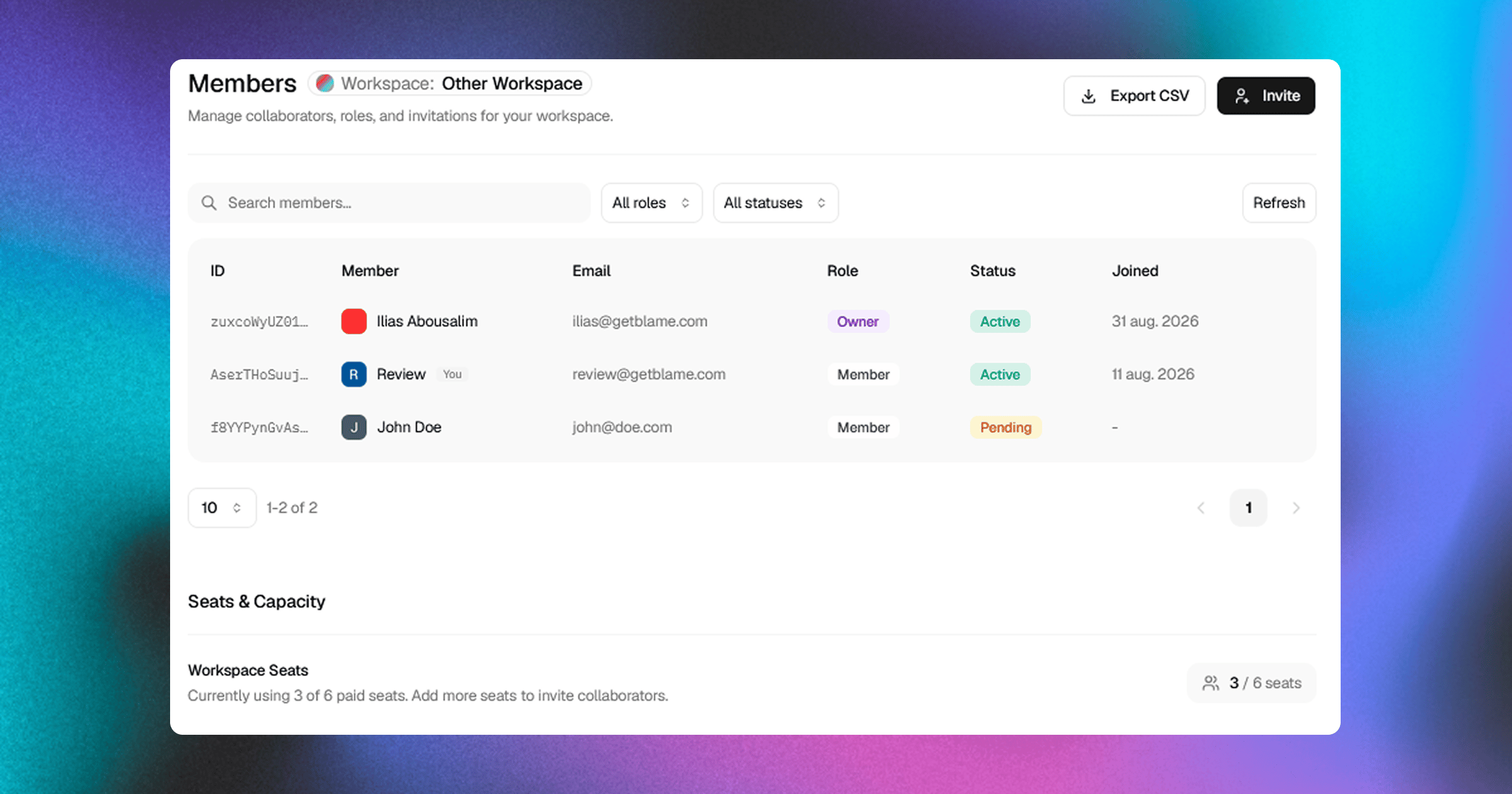
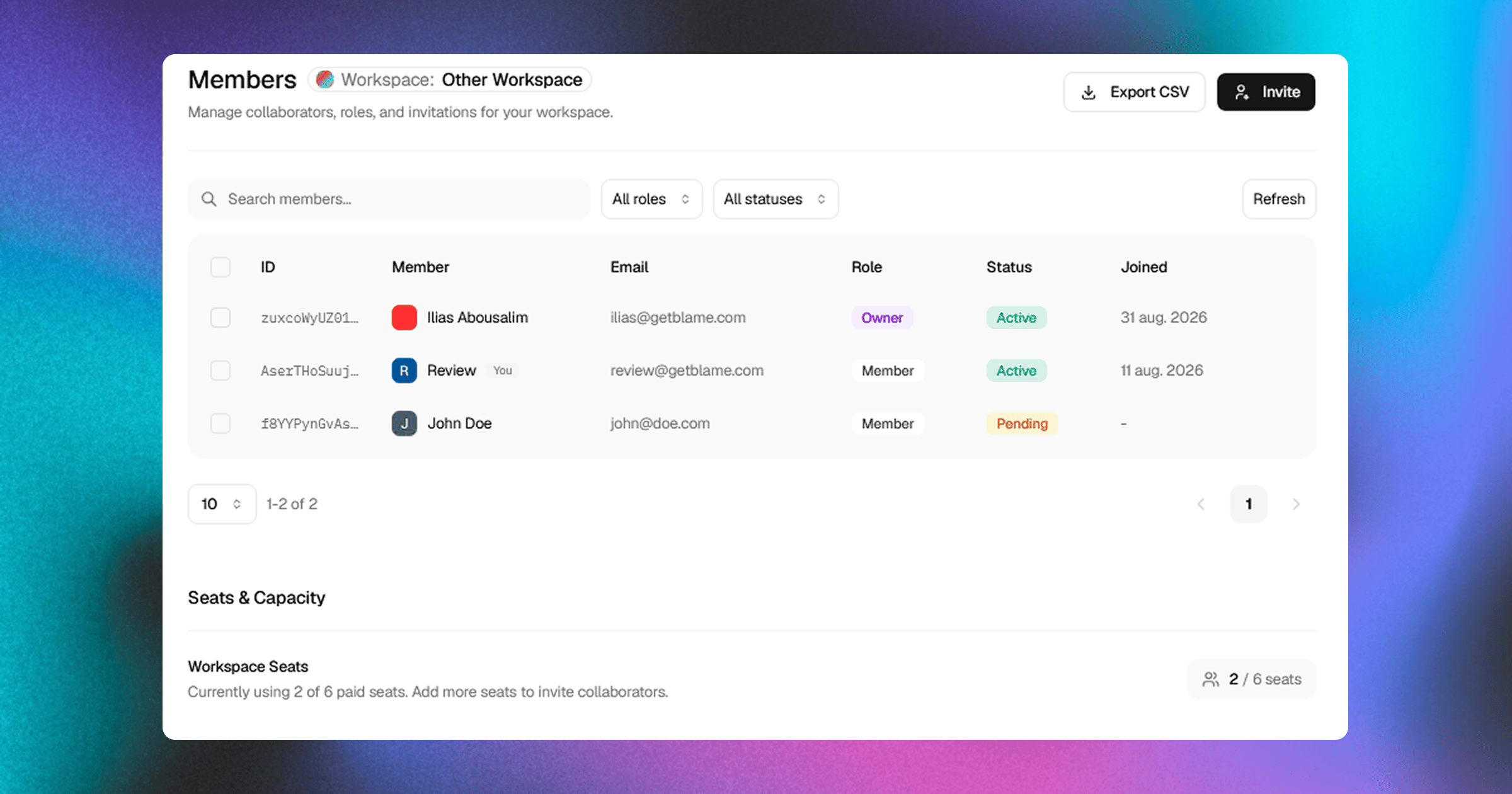
Search & Filtering
- Search: Quickly find teammates by name or email address.
- Role Filter: Filter by
All Roles,Owner,Admin, orMember. - Status Filter: View
Activemembers or pendingInvitedusers.
Changing Member Roles
Owners and Admins can update another user’s role at any time:- Locate the user in the Members table.
- Click the three-dots action menu (
...) on their row. - Select Make Admin or Make Member.
Removing Members & Revoking Invites
- Remove Member: Click the action menu (
...) next to an active member and select Remove Member. They will immediately lose access to all workspace repositories and chat threads. - Revoke Invite: If an invited colleague has not yet accepted their invitation, click Revoke Invitation from their row to cancel the pending invite and free up the allocated seat.
Bulk Actions
You can select multiple members or invites using the checkboxes on the left side of the table:- Bulk Remove: Remove multiple users or revoke multiple pending invitations simultaneously from the floating action bar.
Related Documentation
- Workspaces Overview — Workspace architecture and multi-workspace workflows.
- Workspace Settings — Branding, default invite permissions, and ownership transfer.
- Billing & Plans — Upgrading workspace tiers, credit consumption, and invoice management.