> ## Documentation Index
> Fetch the complete documentation index at: https://docs.getblame.com/llms.txt
> Use this file to discover all available pages before exploring further.
# Workspace Settings
The **Workspace Settings** page allows workspace Owners and Admins to manage core settings, identity details, security configurations, and lifecycle operations for their workspace.
To access these settings:
1. Click on your profile or workspace menu in the navigation sidebar.
2. Select **Settings** (or press the Settings gear icon).
3. Under the **Workspace** section in the sidebar, choose **General**.
***
## Workspace General Details
You can view and configure the foundational attributes of your workspace:
* **Workspace Name**: Change your team or company name displayed across the Blame application (max 64 characters).
* **Workspace ID**: A unique identifier for your workspace. Used when referencing your organization in API requests, integrations, or support inquiries.
* **Workspace Logo / Avatar**: Upload a custom icon or logo representing your workspace. Supports cropping and automatic thumbnail generation.
### Updating Workspace Name & Logo
1. In the **Workspace Settings** panel, click **Edit** next to the workspace name.
2. Enter the new workspace name and click **Save**.
3. To update the logo, click the upload button on the avatar, select an image (`.png`, `.jpg`, `.webp`), crop as desired, and confirm.
***
## Member Invite & Role Preferences
Admins and Owners can enforce policies regarding how new users are added to the workspace:
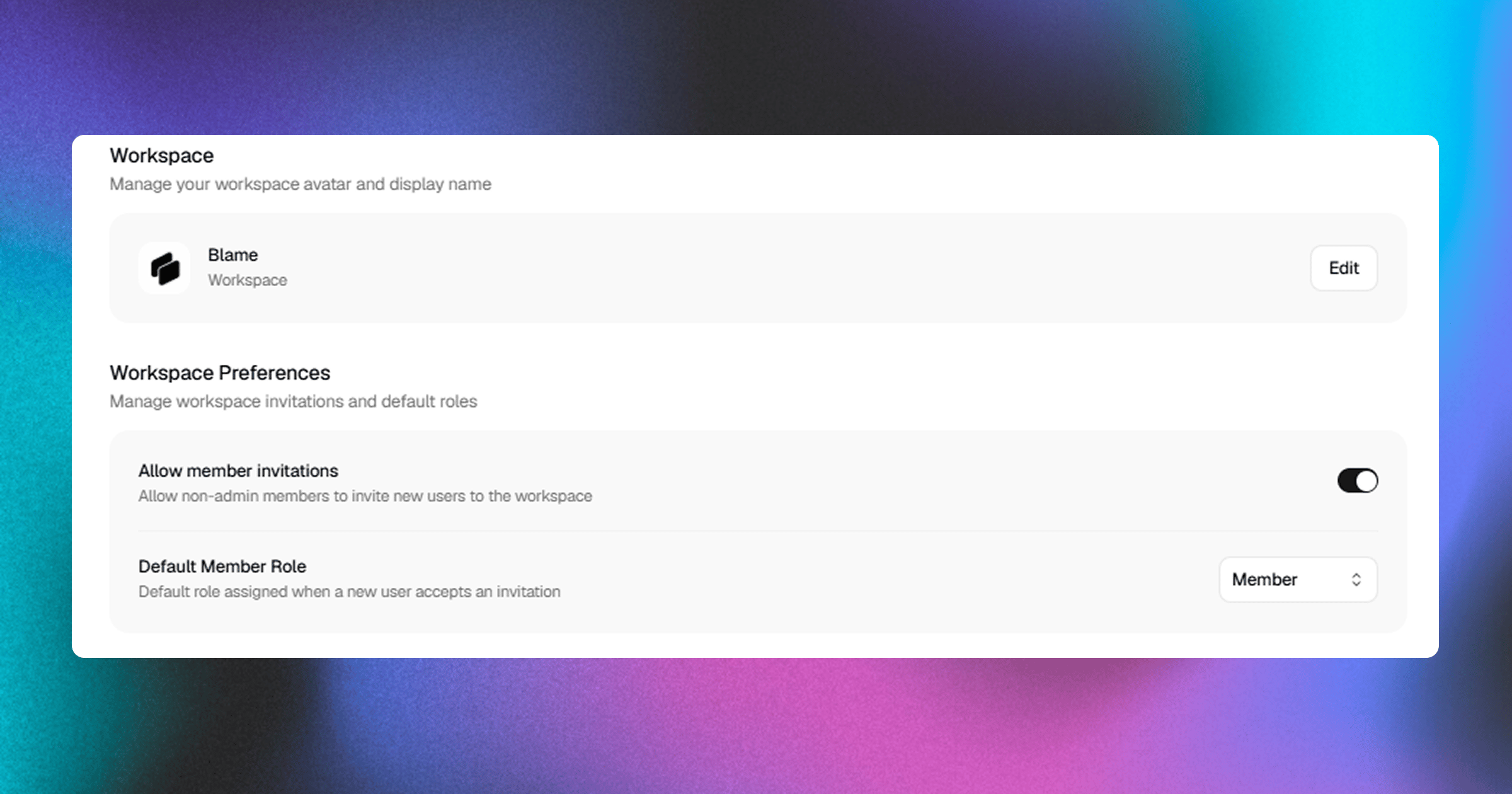 ### 1. Allow Member Invites
* **Enabled (Default)**: Standard members can invite new colleagues to the workspace.
* **Disabled**: Only workspace Admins and Owners are allowed to generate invite links or send email invitations.
### 2. Default Role for New Members
Set the baseline permission level granted to new members joining via invite links or team invites:
* **Member**: Standard access (can chat, query codebases, view wikis, and trigger PR reviews).
* **Admin**: Elevated access (can connect repositories, configure integrations, update settings, and manage API keys).
***
## Pending Invitations
If your user account has received invitations to other workspaces, they will appear in the **Invitations** section:
* **Accept**: Join the inviting workspace immediately with your assigned role.
* **Decline**: Dismiss the invitation.
***
## Danger Zone
The Danger Zone includes actions that permanently affect the workspace and its associated data.
### 1. Allow Member Invites
* **Enabled (Default)**: Standard members can invite new colleagues to the workspace.
* **Disabled**: Only workspace Admins and Owners are allowed to generate invite links or send email invitations.
### 2. Default Role for New Members
Set the baseline permission level granted to new members joining via invite links or team invites:
* **Member**: Standard access (can chat, query codebases, view wikis, and trigger PR reviews).
* **Admin**: Elevated access (can connect repositories, configure integrations, update settings, and manage API keys).
***
## Pending Invitations
If your user account has received invitations to other workspaces, they will appear in the **Invitations** section:
* **Accept**: Join the inviting workspace immediately with your assigned role.
* **Decline**: Dismiss the invitation.
***
## Danger Zone
The Danger Zone includes actions that permanently affect the workspace and its associated data.
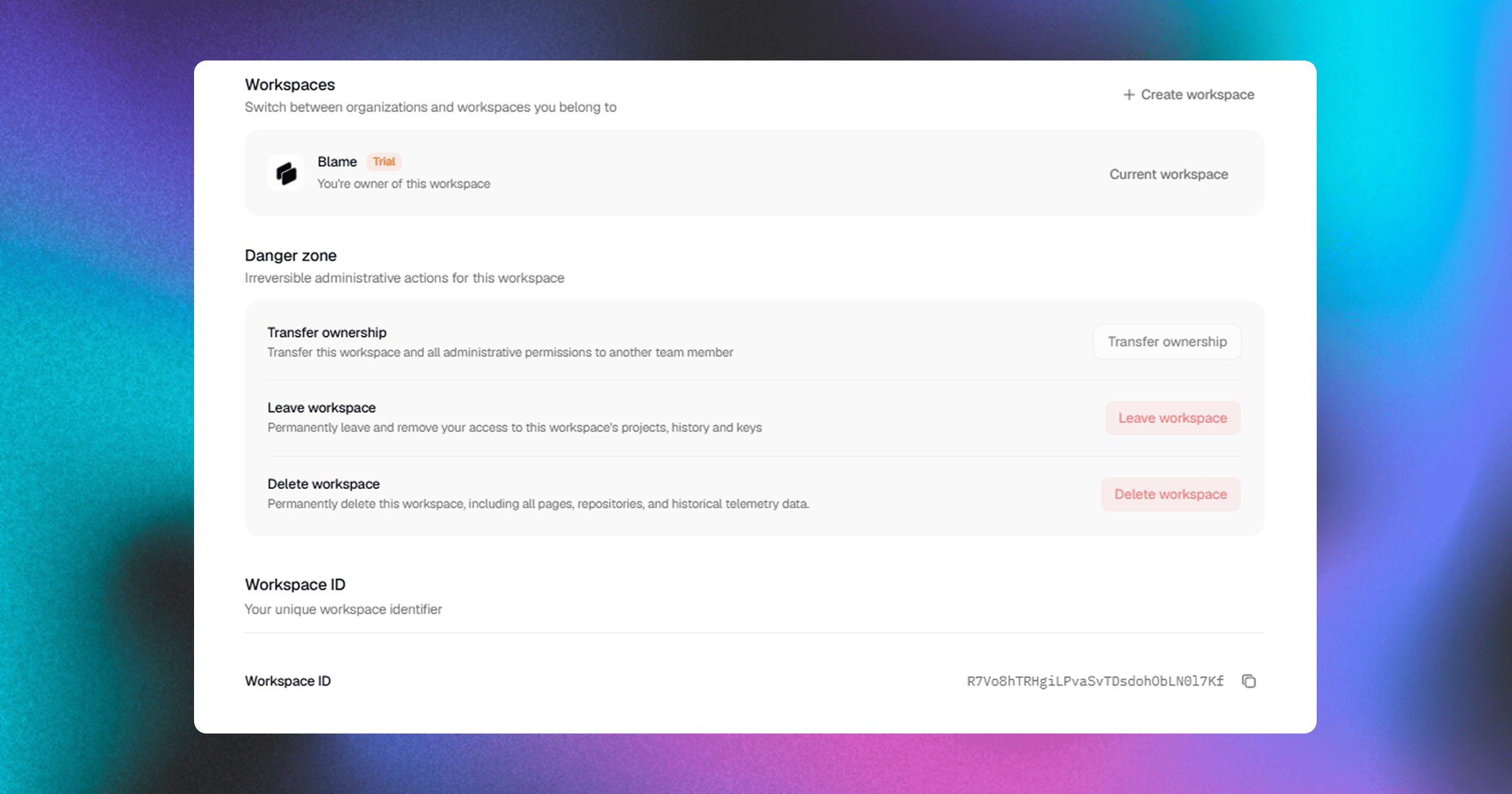 ### Transferring Ownership
Owners can transfer full primary ownership of the workspace to another existing member:
1. Click **Transfer Ownership** in the Danger Zone.
2. Select an eligible workspace member from the list.
3. Confirm the transfer.
Once ownership is transferred, your role will change to **Admin**, and the new owner will gain exclusive rights to delete the workspace or transfer ownership again.
## Leaving a Workspace
If you are a member or admin and no longer need access to a workspace, you can leave it at any time:
1. Scroll to the bottom of the **Workspace Settings** tab.
2. Click **Leave Workspace**.
3. Type the confirmation text prompted in the dialog and click **Confirm Leave**.
**For Workspace Owners:** You cannot leave a workspace if you are the sole Owner. You must first transfer ownership to another team member or delete the workspace.
### Deleting a Workspace
Deleting a workspace permanently removes all associated data, including:
* Indexed repository ASTs, code embeddings, and metadata.
* Chat history, agent execution logs, and custom rules.
* Automated PR review configurations and generated wikis.
* Workspace API keys, webhooks, and integrations.
To delete a workspace:
1. Click **Delete Workspace** in the Danger Zone.
2. Type the exact workspace name into the confirmation field.
3. Click **Permanently Delete**.
***
## Related Guides
* [Workspaces Overview](/workspaces-overview) — High-level architecture, hierarchy, and roles.
* [Members & Permissions](/managing-members) — Managing team members and granular role capabilities.
* [API Keys](/workspaces/api-keys) — Managing workspace-scoped authentication keys.
### Transferring Ownership
Owners can transfer full primary ownership of the workspace to another existing member:
1. Click **Transfer Ownership** in the Danger Zone.
2. Select an eligible workspace member from the list.
3. Confirm the transfer.
Once ownership is transferred, your role will change to **Admin**, and the new owner will gain exclusive rights to delete the workspace or transfer ownership again.
## Leaving a Workspace
If you are a member or admin and no longer need access to a workspace, you can leave it at any time:
1. Scroll to the bottom of the **Workspace Settings** tab.
2. Click **Leave Workspace**.
3. Type the confirmation text prompted in the dialog and click **Confirm Leave**.
**For Workspace Owners:** You cannot leave a workspace if you are the sole Owner. You must first transfer ownership to another team member or delete the workspace.
### Deleting a Workspace
Deleting a workspace permanently removes all associated data, including:
* Indexed repository ASTs, code embeddings, and metadata.
* Chat history, agent execution logs, and custom rules.
* Automated PR review configurations and generated wikis.
* Workspace API keys, webhooks, and integrations.
To delete a workspace:
1. Click **Delete Workspace** in the Danger Zone.
2. Type the exact workspace name into the confirmation field.
3. Click **Permanently Delete**.
***
## Related Guides
* [Workspaces Overview](/workspaces-overview) — High-level architecture, hierarchy, and roles.
* [Members & Permissions](/managing-members) — Managing team members and granular role capabilities.
* [API Keys](/workspaces/api-keys) — Managing workspace-scoped authentication keys.