> ## Documentation Index
> Fetch the complete documentation index at: https://docs.getblame.com/llms.txt
> Use this file to discover all available pages before exploring further.
# Managing Members
The **Members** management tab allows workspace Owners and Admins to invite colleagues, track pending invitations, manage seat limits, and configure user permissions across the workspace.
To access the Members page:
1. Open the navigation sidebar and click **on your workspace**.
2. Under the **Workspace** section in the left menu, select **Members & permissions**.
***
## Workspace Seats & Quota
Workspaces operate on a seat-based model depending on your active subscription plan (Starter, Pro, or Max):
* **Occupied Seats**: The sum of all active workspace members plus all outstanding pending invitations.
* **Seat Limit**: The maximum number of members and active invites your workspace subscription currently covers.
 ### Adding or Removing Seats
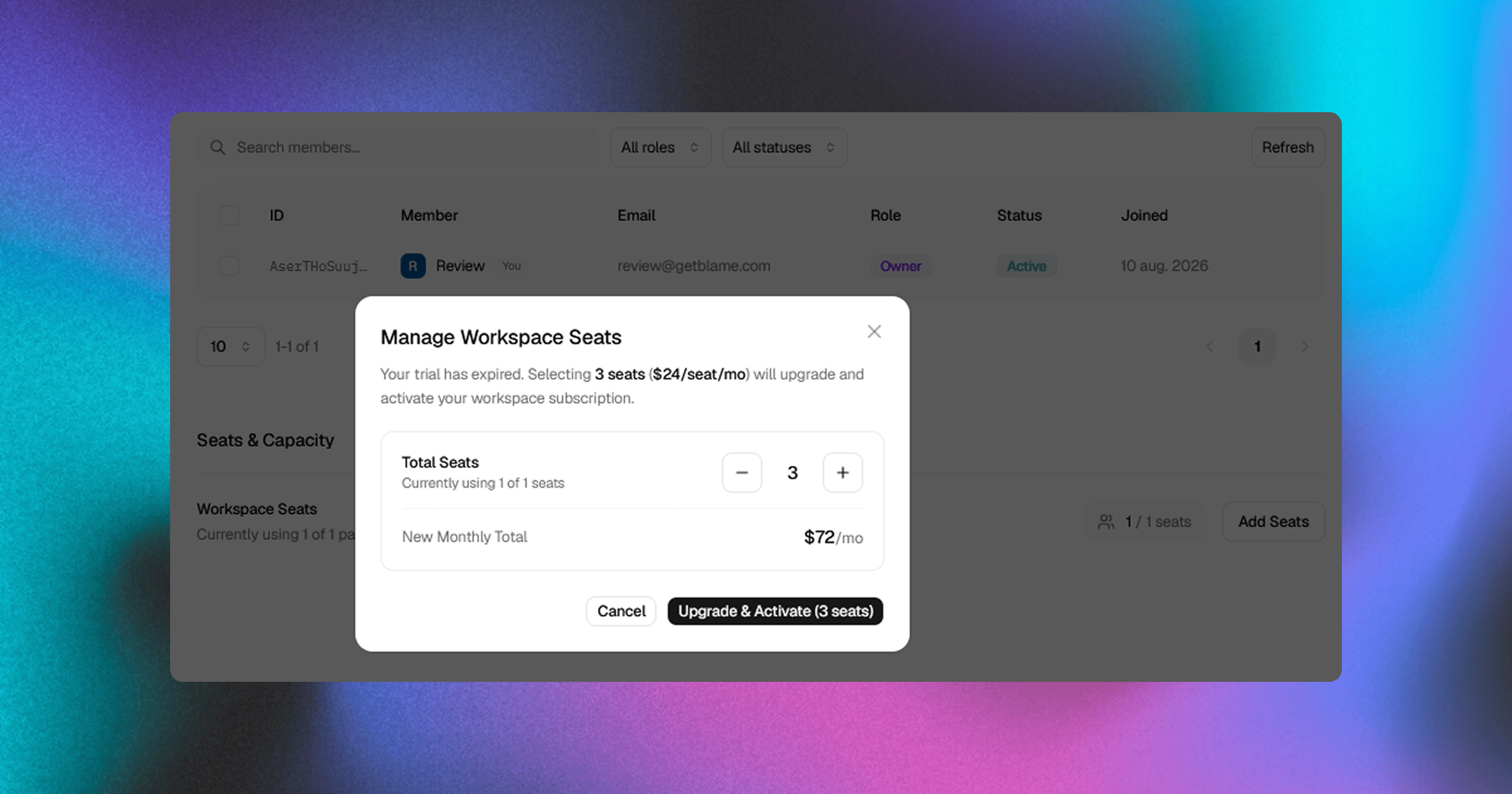
Workspace Admins and Owners can adjust seat capacity directly from the Members tab:
1. Click **Add Seats** next to seat counts in the **Seats & Capacity** section.
2. Increment or decrement the seat count (up to 100 seats).
3. Confirm the update. Billing will be automatically prorated on your subscription.
***
## Inviting New Members
Depending on your workspace invite settings, Owners, Admins, and (optionally) Members can invite new team members.
### Adding or Removing Seats
Workspace Admins and Owners can adjust seat capacity directly from the Members tab:
1. Click **Add Seats** next to seat counts in the **Seats & Capacity** section.
2. Increment or decrement the seat count (up to 100 seats).
3. Confirm the update. Billing will be automatically prorated on your subscription.
***
## Inviting New Members
Depending on your workspace invite settings, Owners, Admins, and (optionally) Members can invite new team members.
 ### Sending an Invite
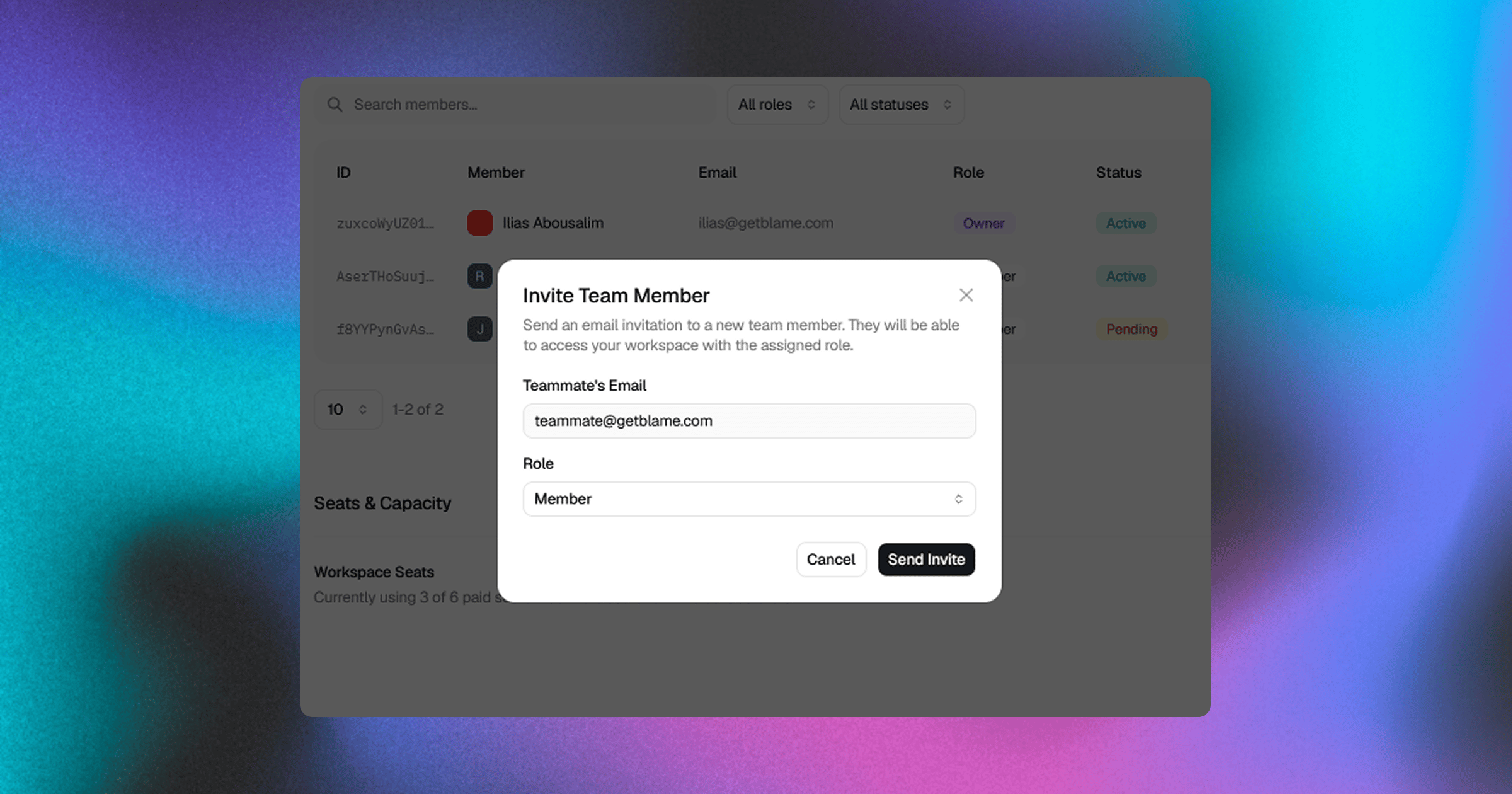
1. Click the **Invite** button at the top right of the Members page.
2. Enter the teammate's email address.
3. Select an initial role:
* **Member**: Standard user access (chats, PR reviews, and repos).
* **Admin**: Elevated administrative access (connect repos, billing, integrations, API keys).
4. Click **Send Invite**.
An email invitation with a secure link will be dispatched to the user. Once accepted, they gain immediate access to all workspace assets.
***
## Member Roles & Permissions Matrix
Blame implements role-based access control (RBAC) to ensure security across your repositories and billing data:
| Feature & Action | Owner | Admin | Member |
| :- | :-: | :-: | :-: |
| **Workspace Repositories & Search** | Yes | Yes | Yes |
| **AI Assistant & Chat History** | Yes | Yes | Yes |
| **Automated PR Reviews & Wikis** | Yes | Yes | Yes |
| **Invite New Members** | Yes | Yes | Configurable\* |
| **Manage Repositories (Connect / Sync / Delete)** | Yes | Yes | No |
| **Manage Workspace API Keys** | Yes | Yes | No |
| **Configure Integrations (Slack / Linear / Discord)** | Yes | Yes | No |
| **Manage Billing & Adjust Seats** | Yes | Yes | No |
| **Promote / Demote Roles (Admin & Member)** | Yes | Yes | No |
| **Remove Members & Revoke Invites** | Yes | Yes | No |
| **Transfer Workspace Ownership** | Yes | No | No |
| **Permanently Delete Workspace** | Yes | No | No |
Members can invite new users only when the **Allow Member Invites** setting is enabled in [Workspace Settings](/workspace-settings).
***
## Managing Existing Members & Invites
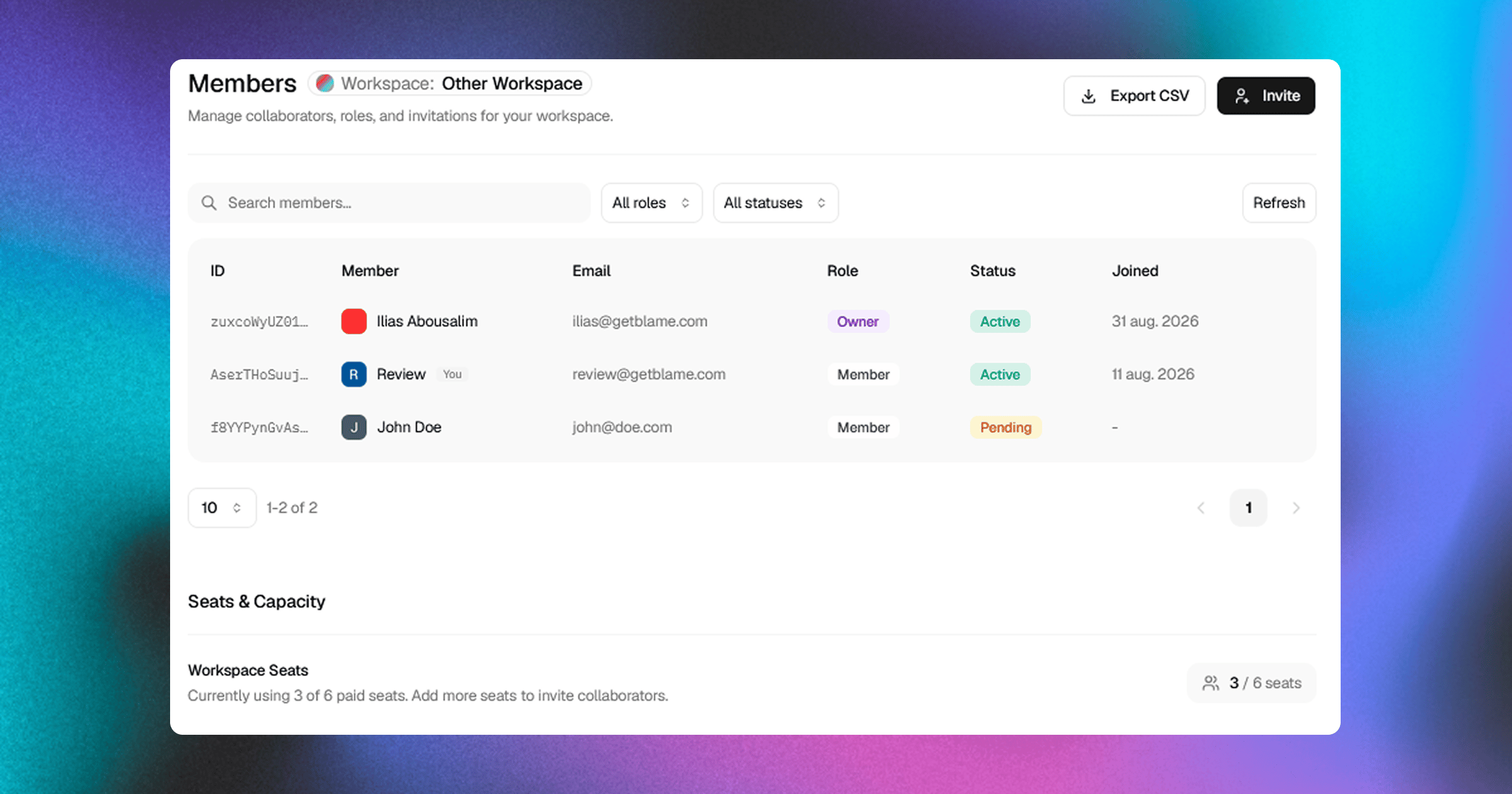
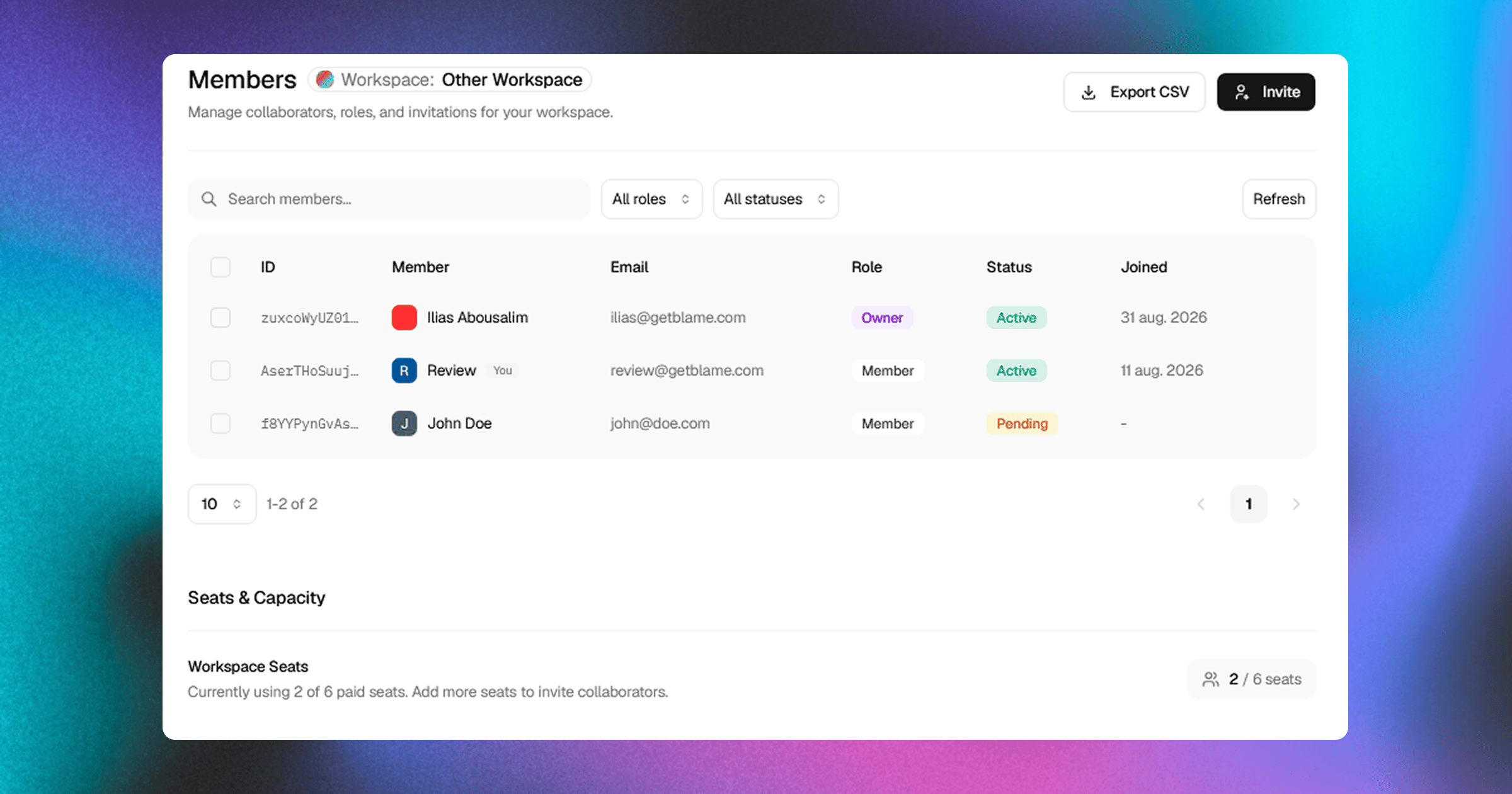
The Members table displays all active users and pending invitations in one consolidated list.
### Sending an Invite
1. Click the **Invite** button at the top right of the Members page.
2. Enter the teammate's email address.
3. Select an initial role:
* **Member**: Standard user access (chats, PR reviews, and repos).
* **Admin**: Elevated administrative access (connect repos, billing, integrations, API keys).
4. Click **Send Invite**.
An email invitation with a secure link will be dispatched to the user. Once accepted, they gain immediate access to all workspace assets.
***
## Member Roles & Permissions Matrix
Blame implements role-based access control (RBAC) to ensure security across your repositories and billing data:
| Feature & Action | Owner | Admin | Member |
| :- | :-: | :-: | :-: |
| **Workspace Repositories & Search** | Yes | Yes | Yes |
| **AI Assistant & Chat History** | Yes | Yes | Yes |
| **Automated PR Reviews & Wikis** | Yes | Yes | Yes |
| **Invite New Members** | Yes | Yes | Configurable\* |
| **Manage Repositories (Connect / Sync / Delete)** | Yes | Yes | No |
| **Manage Workspace API Keys** | Yes | Yes | No |
| **Configure Integrations (Slack / Linear / Discord)** | Yes | Yes | No |
| **Manage Billing & Adjust Seats** | Yes | Yes | No |
| **Promote / Demote Roles (Admin & Member)** | Yes | Yes | No |
| **Remove Members & Revoke Invites** | Yes | Yes | No |
| **Transfer Workspace Ownership** | Yes | No | No |
| **Permanently Delete Workspace** | Yes | No | No |
Members can invite new users only when the **Allow Member Invites** setting is enabled in [Workspace Settings](/workspace-settings).
***
## Managing Existing Members & Invites
The Members table displays all active users and pending invitations in one consolidated list.
 ### Search & Filtering
* **Search**: Quickly find teammates by name or email address.
* **Role Filter**: Filter by `All Roles`, `Owner`, `Admin`, or `Member`.
* **Status Filter**: View `Active` members or pending `Invited` users.
### Changing Member Roles
Owners and Admins can update another user's role at any time:
1. Locate the user in the Members table.
2. Click the three-dots action menu (`...`) on their row.
3. Select **Make Admin** or **Make Member**.
### Removing Members & Revoking Invites
* **Remove Member**: Click the action menu (`...`) next to an active member and select **Remove Member**. They will immediately lose access to all workspace repositories and chat threads.
* **Revoke Invite**: If an invited colleague has not yet accepted their invitation, click **Revoke Invitation** from their row to cancel the pending invite and free up the allocated seat.
### Bulk Actions
You can select multiple members or invites using the checkboxes on the left side of the table:
* **Bulk Remove**: Remove multiple users or revoke multiple pending invitations simultaneously from the floating action bar.
***
## Related Documentation
* [Workspaces Overview](/workspaces-overview) — Workspace architecture and multi-workspace workflows.
* [Workspace Settings](/workspace-settings) — Branding, default invite permissions, and ownership transfer.
* [Billing & Plans](/billing) — Upgrading workspace tiers, credit consumption, and invoice management.
### Search & Filtering
* **Search**: Quickly find teammates by name or email address.
* **Role Filter**: Filter by `All Roles`, `Owner`, `Admin`, or `Member`.
* **Status Filter**: View `Active` members or pending `Invited` users.
### Changing Member Roles
Owners and Admins can update another user's role at any time:
1. Locate the user in the Members table.
2. Click the three-dots action menu (`...`) on their row.
3. Select **Make Admin** or **Make Member**.
### Removing Members & Revoking Invites
* **Remove Member**: Click the action menu (`...`) next to an active member and select **Remove Member**. They will immediately lose access to all workspace repositories and chat threads.
* **Revoke Invite**: If an invited colleague has not yet accepted their invitation, click **Revoke Invitation** from their row to cancel the pending invite and free up the allocated seat.
### Bulk Actions
You can select multiple members or invites using the checkboxes on the left side of the table:
* **Bulk Remove**: Remove multiple users or revoke multiple pending invitations simultaneously from the floating action bar.
***
## Related Documentation
* [Workspaces Overview](/workspaces-overview) — Workspace architecture and multi-workspace workflows.
* [Workspace Settings](/workspace-settings) — Branding, default invite permissions, and ownership transfer.
* [Billing & Plans](/billing) — Upgrading workspace tiers, credit consumption, and invoice management.